Invite someone to the workspace
Active members, suspended members, and unexpired invitations occupy seats. Cancel an unused invitation or remove a member to release a seat.
- As the account owner, open Settings → Team. An active Scale plan supports five people in total, including the owner.
- Choose Invite member, enter the person’s email address, and choose their permissions for each area.
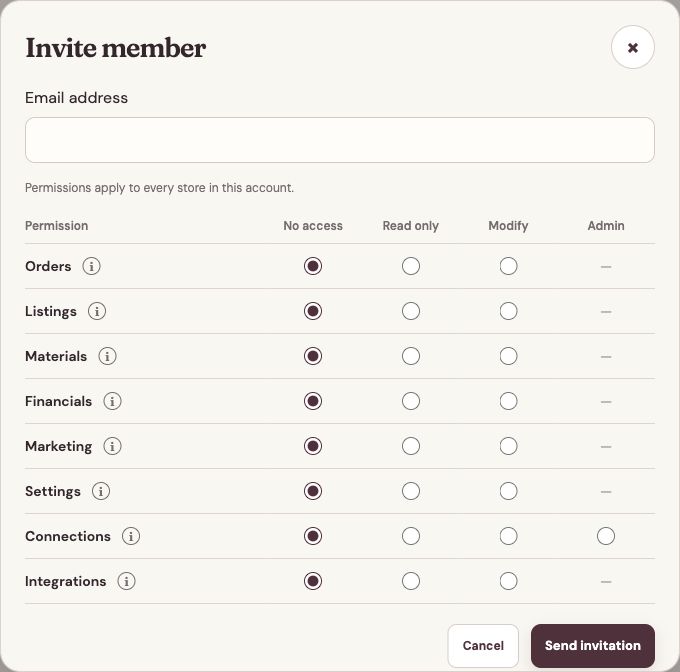
Choose access for each area before sending the invitation. - Choose Send invitation. The recipient opens the email link and completes the invitation’s sign-in and account details to join your workspace.
Choose the right access level
Use the information button beside a permission area to review its scope. To change an existing member, choose Edit permissions and then Save permissions.
- No access hides the area and blocks its actions. Read only lets the member review permitted information. Modify allows changes within that area.
- Settings controls shared workflow and print configuration. Each member’s notification preferences remain personal.
- Connections has an additional Admin level. Modify can include or exclude existing listings; Admin also manages store setup, credentials, automatic-listing defaults, disconnection, and Connection Units.
- Some actions combine permissions. Creating an order or run needs Orders Modify and Listings Read; adding produced stock also needs Listings Modify. Financial details require the corresponding Financials access.
- Team management, billing, privacy, account deletion, and integration pairing or credentials remain owner responsibilities. Connections Admin does not grant billing or Team access.
Manage invitations and member access
- Resend invitation sends another invitation email. Cancel invitation revokes unused access and releases that invitation’s seat.
- Suspend access stops a member’s access while retaining their seat. Use Resume access when they should return.
- Remove member stops access and releases the seat. Shared stores, orders, listings, materials, and saved setup stay with the workspace. You can invite that email back to the same account later.
- If the account no longer has active Scale access, member access stops. Restoring Scale does not automatically resume someone you explicitly suspended or removed.
Keep personal settings separate
Members work with the shared business data their permissions allow. Each person chooses their own email summaries and alerts in Settings → Notifications; messages go to that person’s account email.
Browser download-folder choices are also personal. Each person who generates print bundles should choose the appropriate download location in their own browser.