Choose the listings and destination
You need Listings Modify and Connections Read access. Review the destination’s result below before confirming: some copies become live products. Copying does not convert currencies or replace store-wide shipping and return policies.
- In Listings, open a listing’s More actions menu and choose Copy to another store. For several listings, select them, choose Copy to another store… in Bulk action, then choose Copy listings.
- Choose the destination store. A bulk selection uses one destination, with a separate review and confirmation for every listing.
- Check the source and destination identities before continuing. Shopify locations in the same shop share one catalog, so they are not separate copy destinations.
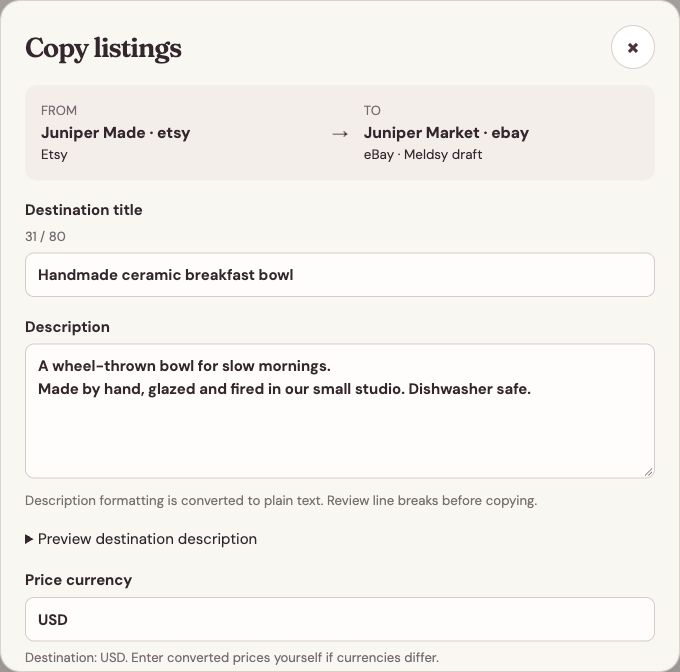
Check the destination before reviewing the product fields.
Check the destination requirements
- Etsy: physical products need a category, maker details, shipping and processing profiles, and an existing return policy from the destination shop. Choose Create draft or Publish live. Digital downloads cannot be copied through this workflow.
- eBay: prepare a draft in Meldsy, validate it with eBay, then separately confirm publication. A successful publication creates a live fixed-price listing. Reconnect an older connection if Meldsy requests listing or policy-read access.
- Shopify: Create draft keeps the product unpublished. Publish live makes it Active after its photos and videos finish processing. The app needs write_products and a configured inventory location. Active status does not select sales channels; review those in Shopify.
- WooCommerce: Create draft or Publish live creates a simple or variable product and adds its photos and variations. Use the existing dedicated Read/Write consumer key and secret; no separate WordPress Application Password is needed. Videos may need manual attachment with a compatible plugin.
Review and create each copy
- Review the title, description, currency, prices, SKUs, variations, photos, and starting quantities. Enter converted prices yourself when store currencies differ.
- Review any weights, dimensions, barcodes, and variation photos the destination supports. Read the displayed requirements and any fields that need manual attachment.
- Choose the destination category, required item details, shipping profiles, and return settings. eBay offers category matches and manual category search; complete its named required fields and condition.
- For eBay, review Defaults for this store. Choose existing business policies or the supported listing-level shipping and return terms. Use Remember for this store to reuse the choices on later copies; editing one copy does not change remembered defaults unless you save them again.
- Choose Create draft or Publish live for Etsy, Shopify, or WooCommerce. For eBay, choose Save draft in Meldsy or Publish live; live publication first goes through validation and fee review. A draft saved in Meldsy has not yet created a destination product.
- Wait for the result and complete any publication confirmation. For a bulk selection, choose Review next listing after each successful copy and confirm that listing separately.
Review and publish an Etsy copy
- Complete the destination’s category, maker, processing, shipping, and return-policy fields. For a calculated shipping profile, also check the listing’s weight and dimensions.
- Choose Publish live. Meldsy prepares the Etsy draft, variations, and photos before opening the fee confirmation.
- Review the destination and the standard Etsy listing fee shown in the acknowledgement. The displayed fee is before credits or taxes.
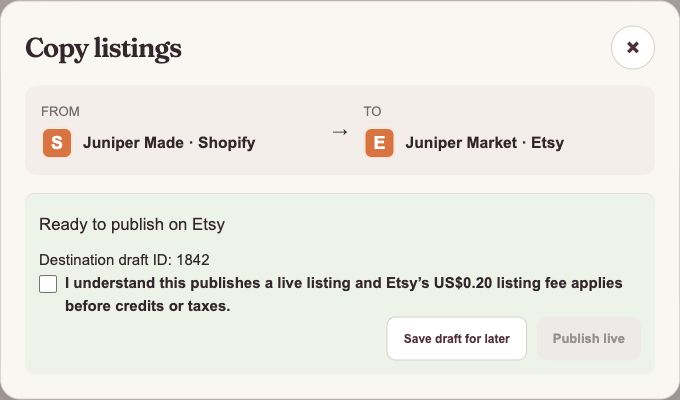
Review the fee and confirm publication, or keep the destination draft unpublished. Sample data shown. - Select the publication acknowledgement, then choose Publish live. To leave the prepared listing unpublished, choose Save draft for later.
- Check the publication result before starting another copy. A draft-only copy does not go through live-publication fee confirmation.
Validate and publish an eBay copy
- Choose Publish live after completing the draft. Meldsy validates it with eBay before opening the separate publication confirmation; validation alone does not publish it.
- When eBay validation passed appears, review the estimated listing fees and any eBay warnings. An absent itemized estimate is not a promise of no fees.
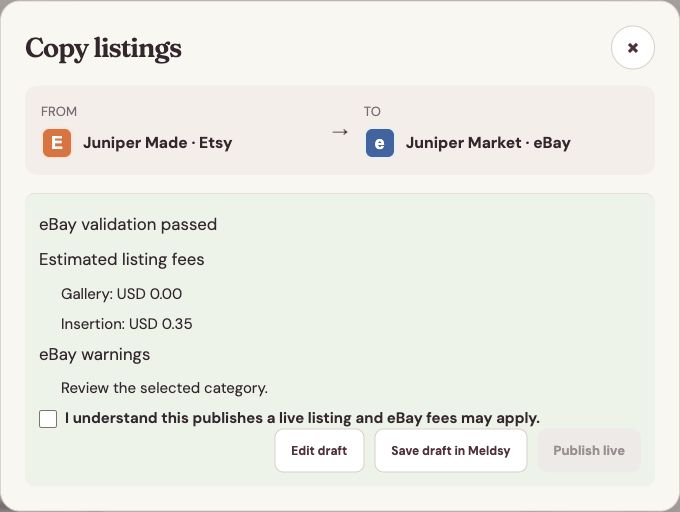
Validation and publication are separate actions. This sample shows a fee review before publishing. - To change a field, choose Edit draft and validate the changed draft again.
- When ready, select the acknowledgement that this publishes a live listing and that eBay fees may apply, then choose Publish live.
- Check the Published to eBay result and listing ID before starting another copy.
Review generated SKUs and source changes
Existing source SKUs are retained. Where a destination needs missing identifiers, Meldsy generates editable SKUs. eBay variation listings and WooCommerce variable products also have a separate Listing SKU or Parent SKU above their variation SKUs.
When offered, Also update source lets you save generated identifiers back to eligible blank source SKU fields. Review its separate confirmation. Keeping them only on the copy leaves the source unchanged; existing nonblank source identifiers are not silently replaced.
WooCommerce can save a generated parent SKU back to the source. Etsy and Shopify do not have a separate parent SKU field, and source eBay SKU changes must be made in eBay. Incompatible or duplicate identifiers need correction before continuing.
Carry over materials, instructions, and costs
After the destination product is confirmed, Meldsy imports it and copies its materials, pack-ins, filament requirements, instruction sets, production costs, and supported variation rules. This happens independently of quantity linking.
Copied assignments use the same materials and instruction library entries. They do not duplicate stock lots, earlier orders, or stock quantities. An independent copy has its own listing-specific setup; later edits are separate unless you link the listings.
Copying production costs requires Financials Modify access and matching listing currencies. A variation rule must map to the same combinations in the destination. If access, mapping, or import needs attention, the product can be created while its Meldsy setup remains pending.
Use Retry copying setup on the completed copy after resolving the reported issue. Older completed copies may offer Copy Meldsy setup. These actions finish setup on the existing destination product without creating or publishing another listing.
Choose independent stock or linked quantities
Leave Sync quantities with the source store off to enter independent starting quantities. Turn it on only when the listings represent the same stock and their variations can be matched. Meldsy rereads the source quantities and checks the mapping before linking the created product.
A confirmed copied product is included in Meldsy when first imported, even if Automatically include new listings is off. It still follows normal capacity rules, and later manual exclusions are respected.
Copying setup and linking quantities have separate results. If quantity linking needs attention after the copy succeeds, check the reported reason and use Retry quantity linking. Review quantities before enabling stock writes.
Resume or check a copy
Meldsy keeps one incomplete copy draft per account. Choose the same source listing and destination store to see Continue draft or Start from scratch. Choosing a different pair asks you to confirm replacement of the saved draft.
When closing an unfinished editor, choose Save draft, Cancel copy, or Keep editing. For bulk copies, only the current listing is saved; the remaining selection is not a saved queue.
While a copy is running, wait for its progress result. If it fails, read the error in the progress window and choose Close to return to the saved review.
If creation, an upload, or publication was not confirmed, use the destination-check action when offered and review the actual store before retrying. This check does not publish or create another product. A product or photo may already exist; canceling a partial copy does not remove it from the destination.
Resume from the saved recovery action when available. Running or uncertain operations can block replacement until their result is confirmed. Starting from scratch refreshes source details; continuing a draft preserves your saved edits.