Before you start
- Use the final public HTTPS address of your WordPress installation. Include its installation subdirectory if it has one; do not use a local-network address or a URL that redirects elsewhere.
- WooCommerce must expose its REST API. In WordPress → Settings → Permalinks, use a structure other than Plain.
- You need a WordPress user allowed to manage WooCommerce orders, listings, and connection subscriptions. A firewall or maintenance page must not block authenticated API access.
- The current Connections screen supports one WooCommerce site per Meldsy account.
Create a dedicated WooCommerce API key
- In WordPress, open WooCommerce → Settings → Advanced → REST API.
- Choose Add key and give it a recognizable description, such as Meldsy.
- Choose the authorized WordPress user and set Permissions to Read/Write.
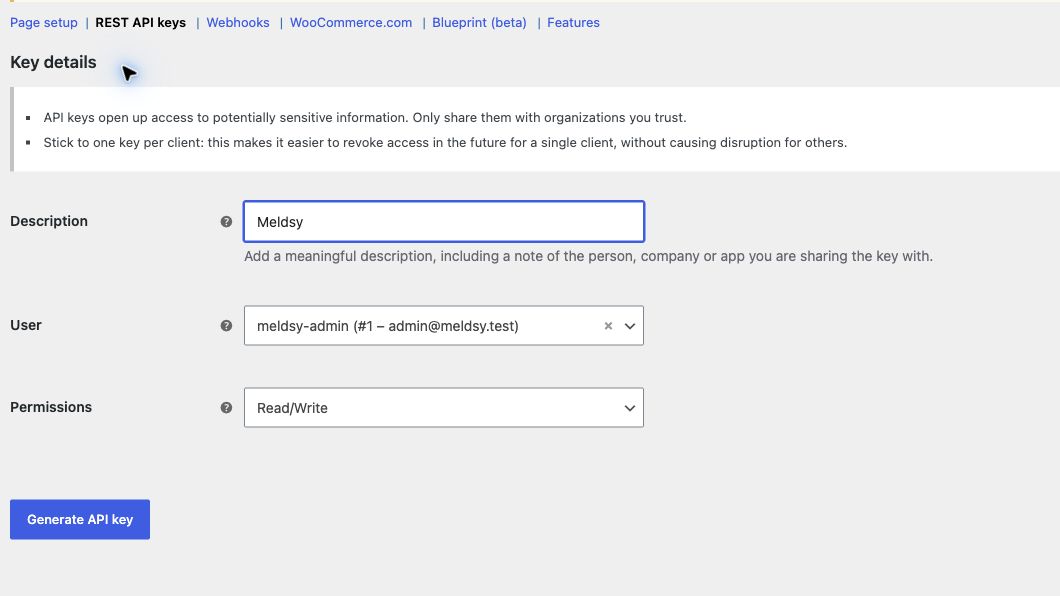
Create a dedicated Read/Write key. Never put generated credentials in screenshots or support messages. - Generate the key and securely copy its Consumer key and Consumer secret. WooCommerce shows the secret only at creation.
Enter the store connection in Meldsy
Meldsy sets up store-change notifications automatically. You do not need to paste a callback URL into WordPress. Check that your hosting runs WordPress scheduled tasks reliably, especially on a low-traffic store.
- Open Meldsy → Settings → Connections → WooCommerce.
- Enter the store’s final HTTPS WordPress URL, Consumer key, and Consumer secret.
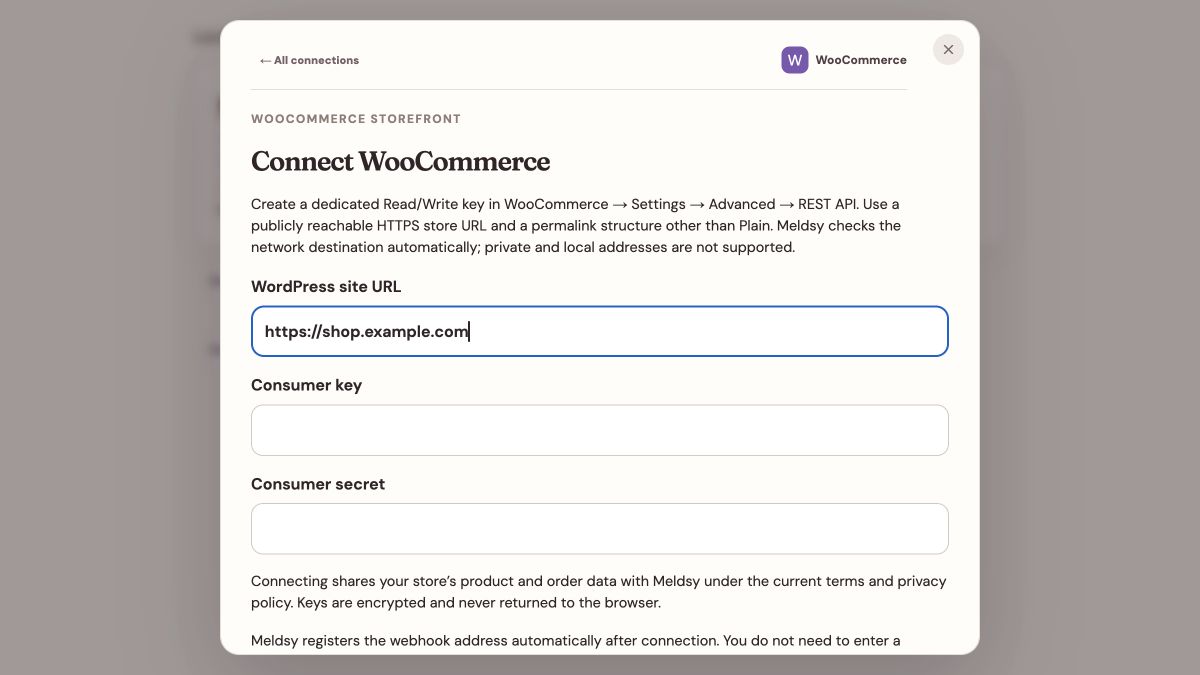
Use WooCommerce API credentials—not your WordPress login password. - Review and accept the terms if prompted, then choose Connect store.
- Wait for the connection checks and initial imports to finish. Review Listing selection and save any exclusions.
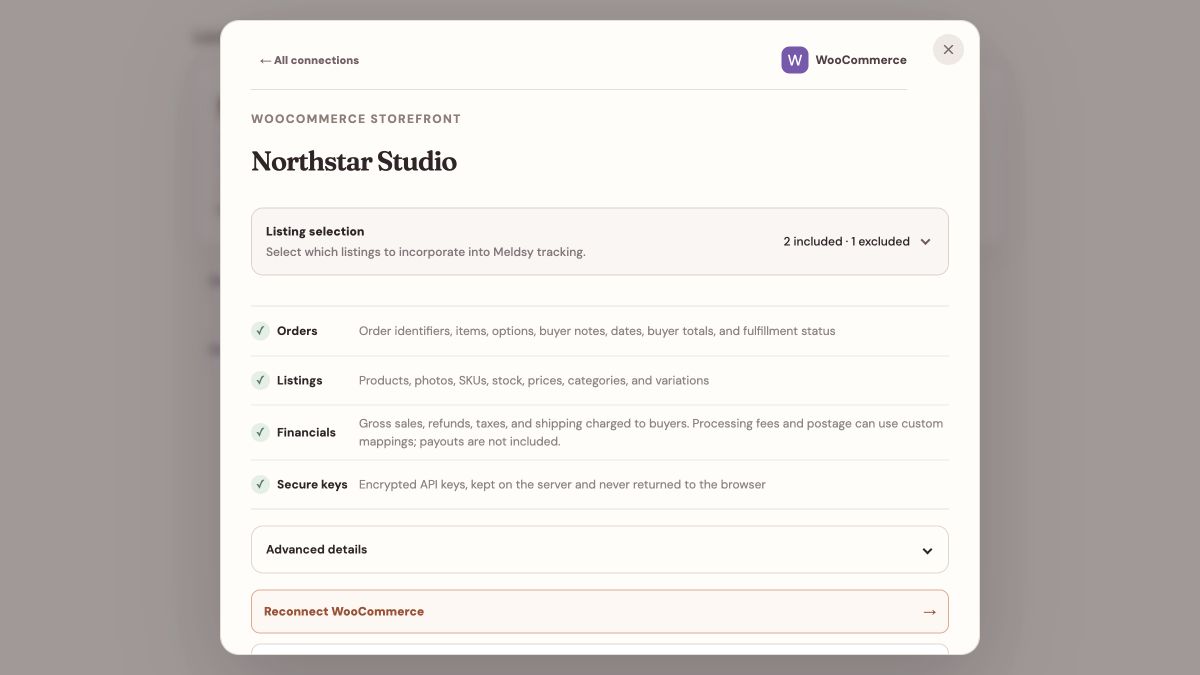
Listing selection controls inclusion; Advanced details contains optional date and cost mappings.
What works by default—and what requires additional setup
- Listings and orders: supported simple and variable listings, variations, photos, order lines, buyer totals, refunds, and standard order statuses import into Meldsy.
- Ship-by date: without a mapping, the order-created date appears as Ordered. Its tooltip says Not Configured. This is not a dispatch deadline and does not make the order overdue.
- Shipping labels: the REST connection does not return PDFs automatically. Purchase or open the label in WordPress, then use a WooCommerce-capable Label Bridge with your domain approved, or select the PDF manually.
- Financials: gross sales, refunds, and local production costs are available. Gateway fees and seller postage need a suitable explicit mapping or manual cost entry. The buyer’s shipping charge is not your postage expense. Settled payouts and complete profit are not inferred.
- Stock: managed, non-negative whole quantities can be used. Unmanaged stock shows Not tracked. Backorders, shared parent/variation stock, bundles, subscriptions, fractional stock, and custom statuses need compatibility review rather than an assumed mapping.
- Quantity sync: review links, variations, and the starting quantity before enabling stock writes. Connecting alone does not switch on shared inventory.
If connection or import fails
- Check the final HTTPS URL, including a WordPress subdirectory. Fix redirects at the source rather than supplying a redirected URL.
- Confirm the key is Read/Write, its WordPress user still has access, and a proxy preserves authorization headers.
- Ask your host to check blocked API requests, public caching of authenticated responses, and scheduled tasks.
- Use Reconnect WooCommerce to replace a revoked key without first removing your imported setup. Review any failed work in Advanced details after fixing access.
- Do not disconnect and delete data as a troubleshooting shortcut.