Prepare the label and print layout
Meldsy Label Bridge returns a shipping-label PDF from Shopify to the order’s print bundle. Purchase or reprint the label in Shopify as usual, then review and confirm the returned PDF in Meldsy.
Meldsy does not buy postage for you. Label handoff and print-bundle generation are separate from completing the order in Shopify.
- Install or update Meldsy Label Bridge in a supported desktop browser. Shopify handoff requires version 0.2.15 or newer. Approve any requested Shopify site access, then refresh any Meldsy tab that was already open.
- In Meldsy print settings, make sure your order bundle includes a Shipping label component.
Set custom-domain access when needed
Standard Shopify Admin, myshopify.com stores, and Shopify’s supported label-PDF hosts are already included. You do not need to add these built-in domains to the custom-domain list.
If you need access to your own HTTPS storefront domain, add it below. This grants browser site access only; it does not change the connected Shopify store or make an unsupported shipping provider compatible.
- Open Meldsy Label Bridge from your browser’s toolbar and expand Custom store access (called WooCommerce store access in older versions).
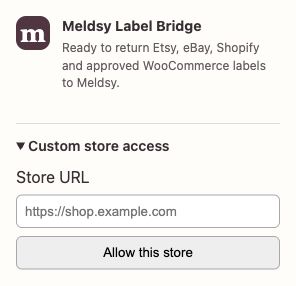
Expand Custom store access to allow your exact HTTPS store domain. - In Store URL, enter the exact public HTTPS store address, such as https://shop.example.com, then choose Allow this store and approve that domain in the browser. Include the correct www or subdomain; each different domain needs its own permission.
- Return to Meldsy. If an earlier attempt reported missing access, choose Open label in Shopify again from the matching order’s print bundle.
Return and review the Shopify label
- Open the Shopify order’s print bundle in Meldsy and choose Open label in Shopify. Start from this action so Label Bridge can match the returned PDF to the correct store and order.
- In the Shopify tab opened by Meldsy, purchase or open the shipping label for that order, then use its Print or Download action. Continue in that same tab if Shopify opens its shipping-label purchase page, and keep the Meldsy bundle open while Label Bridge returns the PDF.
- Back in Meldsy, find Review Shopify PDF and choose Open PDF for review. Check the order, recipient, label, and all additional customs or carrier pages the shipment needs.
- Select the checkbox confirming that you checked the label for this order, then choose Use this label. The PDF is added to the bundle and the handoff returns you to Meldsy. If it is the wrong document, choose Reject & try again and reprint the correct label in the Shopify tab.
- Review the bundle’s label, page count, packing slip, and any instructions. Bundle generation stays unavailable while the captured PDF is waiting for confirmation.
- Generate the print bundle when its contents are correct. The PDF is handled in your browser; it is not saved as a shipping-label file on Meldsy’s server.
Add a PDF manually if needed
If Label Bridge cannot capture the label, or you use a separate shipping provider, download the correct order’s shipping-label PDF and add it yourself.
- Open the order’s print bundle in Meldsy. On the Shipping label page, drag the PDF onto Drop shipping label here, or click to choose a PDF.
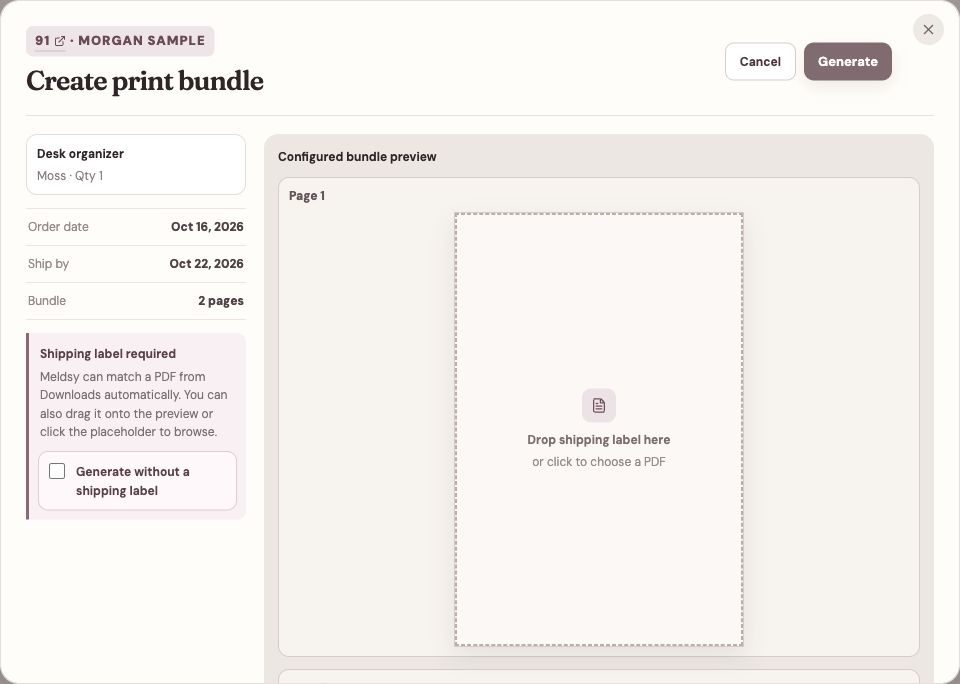
Drag a downloaded label onto the Shipping label page, or click to choose its PDF. - Check the order, recipient, and every required page, then review and generate the bundle.
Complete the order separately
Returning or uploading a label, confirming it, or generating a print bundle does not by itself fulfill the order in Shopify.
For an eligible order at the final workflow stage, choose Complete in Shopify and review the fresh fulfillment plan before confirming. This action is separate from printing and does not send a customer notification.
The current action requires a paid or partially refunded order with fully visible, merchant-managed physical items at the selected inventory location. For held, scheduled, unpaid, split-location, or unsupported fulfillment, finish the work in Shopify instead.
If a label is missing or will not attach
- Update Label Bridge, check its Shopify site access, and refresh Meldsy. Start each handoff with Open label in Shopify from the matching bundle; finish or cancel the current handoff before starting another.
- For a custom storefront domain, check Custom store access in the extension popup. Allow only the exact HTTPS domain you need. A domain permission does not add support for every third-party label-printing flow; manual PDF upload remains available.
- If a PDF is waiting in Review Shopify PDF, open it, confirm the order, and choose Use this label. Use Reject & try again if the document is not the right label.
- Download a PDF, not a screenshot, HTML receipt, invoice, or tracking-page link.
- Check that the label belongs to the same order and includes every required page.
- If a print flow is not supported, use the PDF picker or drag-and-drop fallback. Label Bridge does not automatically capture labels from every third-party shipping site.
- Label handoff does not itself record postage expense, write tracking, or complete fulfillment. Those are separate data and fulfillment actions.