Before you start
This workflow makes the ordered item on your 3D printer. Packing slips, instructions, and shipping labels still use the separate print-bundle workflow.
- Connect Bambuddy to Meldsy and run the latest bridge release. The bridge must be online for printer checks and printing; an older inventory-only bridge is not enough.
- Give the Bambuddy API key access to read printers/status, Archives and managed files, and create and read print-queue jobs. Keep the inventory permissions if you also use synced filament.
- Prepare an already-sliced file in Bambuddy’s Archives or managed File Manager. Supported files contain G-code, including .gcode.3mf and .gcode; raw STL and unsliced 3MF files cannot be printed from Meldsy.
- Slice for the intended printer model and nozzle. One selected plate must represent one ordered unit.
Link a sliced file to the listing
The link saves the sliced file, not a physical printer, plate, or filament source. The Bambuddy linked badge confirms a saved file link; it does not mean the printer is ready.
- Open Listings, then the listing’s ⋯ menu, and choose Link a sliced file from Bambuddy to open Link sliced print file.
- Choose Refresh sliced files & printers. The picker loads up to 500 recent candidate records from Archives and File Manager. Search the loaded files by name, source, file ID, or printer model.
- In Apply file to, keep All variations (default) or choose a known variation for an override. Select a sliced file for each printer model you use. Two printers of the same model share that model’s file choice; other models can stay unlinked.
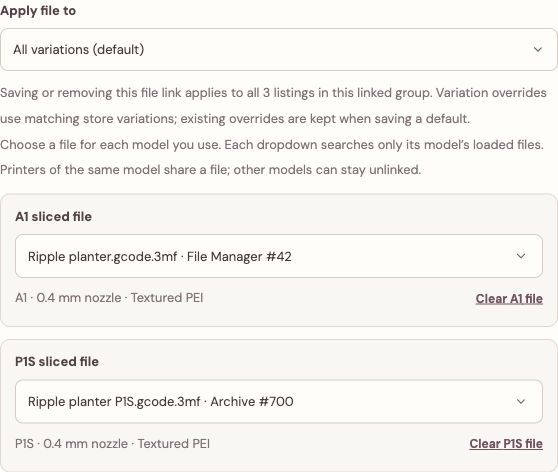
Choose a file per printer model, with an optional variation override. Screenshots use sample data. - Choose Save file mapping. If the listing belongs to a linked group, check the displayed listing count: saving or removing the mapping applies to all current listings in that group.
If a linked listing or variation changes
Existing variation overrides are kept when you save a default. Review the mapping and save again after adding a listing to a linked group; a new member does not automatically receive an older file link.
Review the print from the order
Meldsy checks the selected printer and its loaded slots. A Suggested slot uses the order’s material or color where a reliable match is available; it is not selected automatically. The sliced file’s color is shown separately. Verify the loaded material and color before continuing.
- On an eligible open order with a linked file, open the orange Bambuddy menu beside the workflow controls and choose Review & print. Opening review does not send a print.
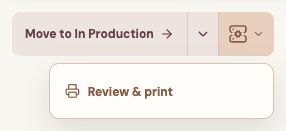
Open Review & print from the Bambuddy menu beside the workflow action. - Check Order line and choose Printer model if more than one model is linked. Review the saved file and its nozzle and plate information.
- Choose the Plate and a matching Printer. A file with one plate uses that plate automatically; a file with several plates needs an explicit choice.
- Choose Filament source. For AMS, select a specific compatible loaded slot for every filament used by the plate. For External spool, load the required filament yourself.
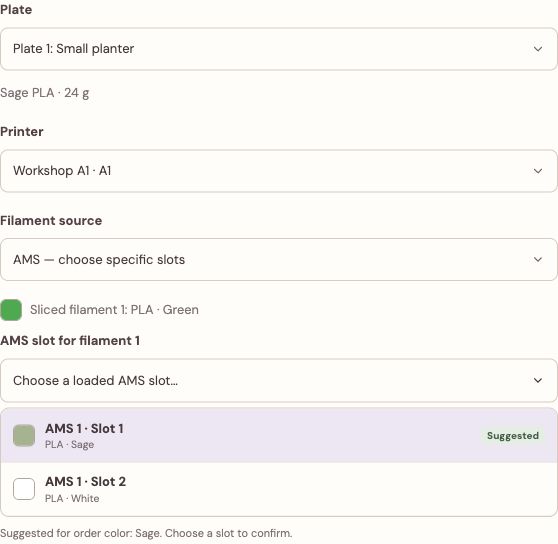
Suggested matches the order color; select a slot yourself to confirm it.
Clear the build plate and start
- Review the selected line, sliced file, plate, printer, nozzle, and loaded filament. Each request queues one copy of the selected plate, even if the order quantity is larger.
- Choose Start Print to open the build-plate confirmation. Remove finished prints and loose material from the named printer.
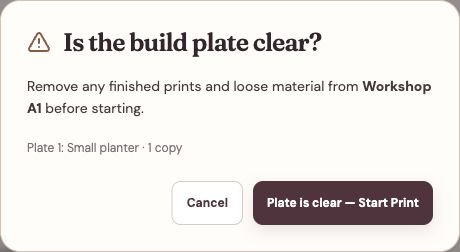
The final confirmation names the printer, plate, and one-copy request. - When the printer is ready and its plate is clear, choose Plate is clear — Start Print to send the request. Choose Cancel to return without sending it.
Follow the print request
The review dialog shows the print-request status and Bambuddy queue number when available. Bambuddy schedules the job and applies its printer and safety checks. A queued request does not mean the printer has started.
Meldsy moves an eligible order to In Production only after it can confirm actual printing. Sending a request does not complete the marketplace order or, by itself, deduct inventory or freeze costs. Continue the normal post-production and packing steps when the work is ready.
If printing is unavailable or uncertain
The Bambuddy order menu is missing
Check that Bambuddy is connected, the order is in New, Ready for Production, or In Production, and its actual listing and variation have a sliced-file link. Closed, shipped, or otherwise ineligible orders cannot launch a print. A link on a different listing does not make this order printable.
A sliced file or printer is missing
Refresh sliced files & printers from the listing’s file-link dialog. Check that the file contains G-code and printer-model information and that Bambuddy exposes the matching active printer. If the file changed after linking, review and save its updated mapping.
Start Print stays unavailable
Check the bridge connection and API permissions, select the required plate, printer and filament source, and resolve any printer-check error. AMS needs a compatible loaded slot for every used filament. Update an older bridge when Meldsy asks, then use Retry printer check if shown.
The request failed or its result is unknown
Inspect the exact queue entry and printer in Bambuddy before trying anything else. Do not send another request simply because the result is delayed or uncertain. Resolve recovery, failed prints, additional copies, and reprints in Bambuddy after checking the existing job.
The job needs complex filament routing
Review complex AMS, dual-nozzle, external switching, or unsupported routing directly in Bambuddy. Meldsy does not slice the model or infer a safe route when the required printer or filament information is missing.