What you see before setup
WooCommerce does not provide one universal dispatch deadline for Meldsy to read. Without a mapping, Orders shows the order-created date labelled Ordered, with Not Configured in the ship-by tooltip. That fallback is not a promised ship-by date and is not used to invent overdue warnings.
Once a mapping is enabled, an absent or invalid field shows Not provided. Meldsy will not silently reuse the order date or a stale deadline.
Plugin-based delivery estimates
Use a third-party plugin such as PluginCity Delivery Estimates for WooCommerce to store a dispatch date separately from the estimated arrival date. The steps below use this plugin as an example; other plugins can work if they expose a supported dispatch-date field in order metadata.
- In WordPress → Plugins → Add New, search for PluginCity Delivery Estimates for WooCommerce, then install and activate it.
- Check Settings → General → Timezone. Prefer your named region, such as America/Los_Angeles, so daylight-saving changes are handled correctly.
- Open WooCommerce → Delivery Estimates. Set the default dispatch time, delivery transit time, working weekdays, and carrier delivery days to match how you actually fulfill orders.
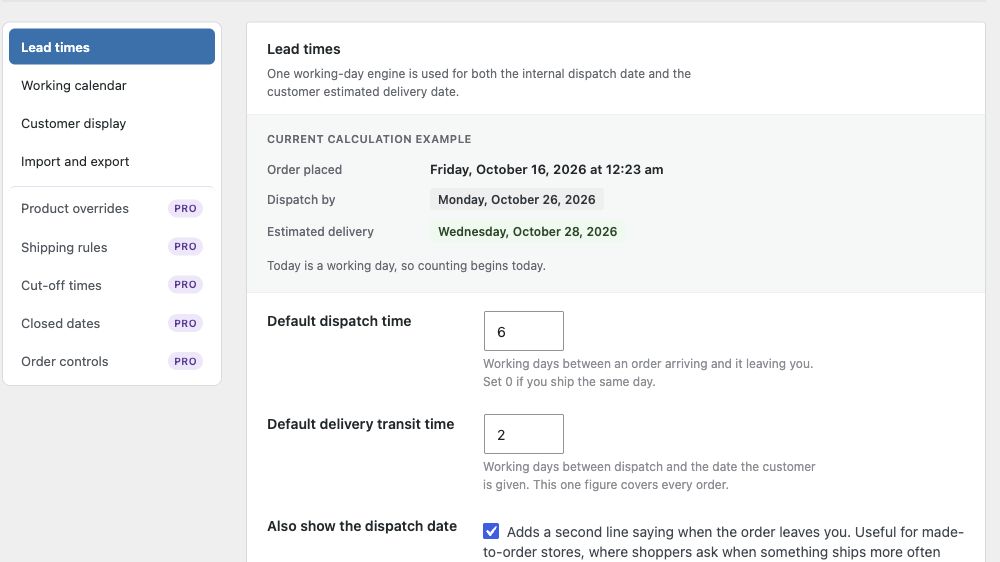
Dispatch time determines when the order leaves your shop; transit time determines the later arrival estimate. - Review the calculation example and save. An eligible new order needs line items before it can supply the stored dispatch date.
Map the dispatch date in Meldsy
The field names below are for the plugin example above. If you use a different plugin, map its own dispatch-date field instead.
- Open Settings → Connections → WooCommerce, then expand Advanced details.
- In Ship-by date mapping, wait for field discovery to finish and turn on Use a custom ship-by field.
- Choose or type _internal_due_date in Metadata field. Do not select _estimated_delivery_date: that is arrival, not dispatch.
- Choose YYYY-MM-DD and enter the same named timezone used by your WordPress store.
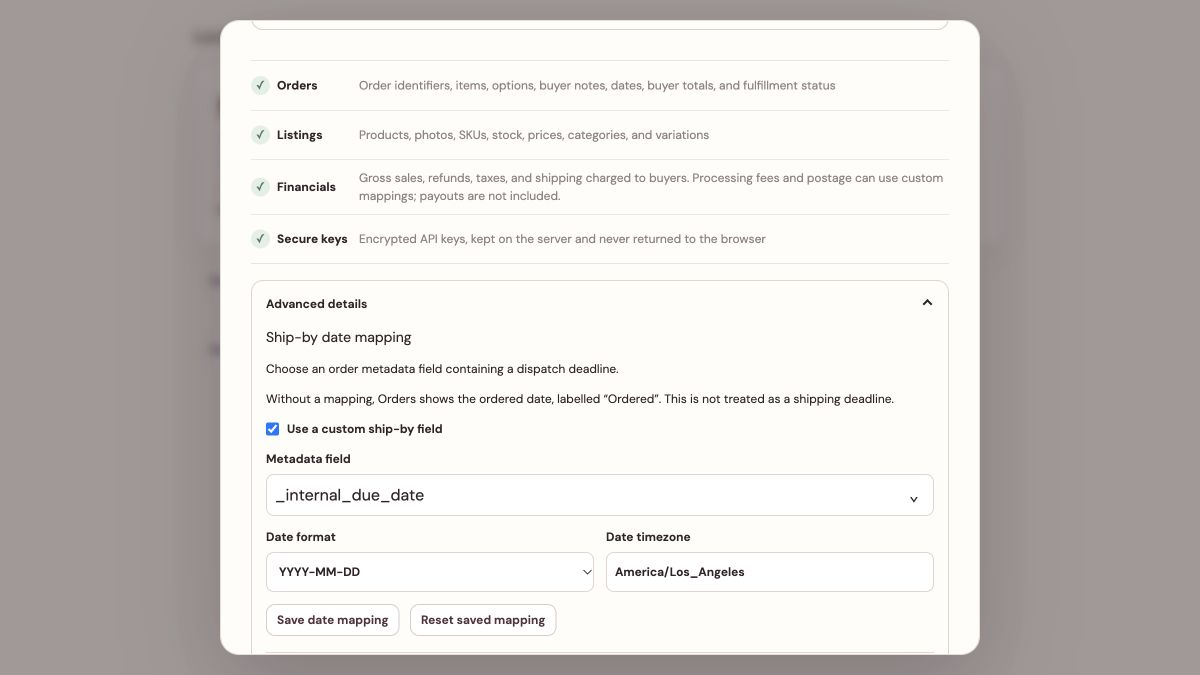
Map _internal_due_date and use your own WordPress store timezone. The values shown are an example. - Choose Save date mapping. Allow the queued order refresh to finish, then check an order with a stored dispatch date.
Metadata field: _internal_due_date
Date format: YYYY-MM-DD
Timezone: your WordPress named timezoneVerify the result and handle missing dates
- Check an eligible new order in WordPress, then confirm Meldsy shows the same dispatch calendar day after syncing.
- Dates are interpreted through the end of the chosen day in the saved timezone. Another viewer’s timezone does not shift the displayed calendar day.
- Discovery samples only recent orders. If your field is absent from the suggestions, enter its exact key manually; this does not create that field on orders.
- Field discovery can take up to 30 seconds. If it fails, manual entry remains available, or close and reopen settings to retry.
- Older orders may not contain the plugin’s date. Review eligible open orders in WordPress; installing a plugin or saving a Meldsy mapping does not invent missing source values.
- Reset saved mapping discards unsaved edits and restores the saved values. To turn mapping off, uncheck Use a custom ship-by field and save.
- Another date plugin can work if it exposes a supported scalar dispatch field in order metadata. Do not assume its delivery or arrival field means ship-by.