Open the shared creation window
Adding a product removes it from the available picker. To change that choice, remove its selected row and add it again. Creation uses existing listings and their saved recipes; it does not create a marketplace order.
- Open Orders and choose + Create new… beside Sort & group.
- Choose Standalone order for a customer or recipient, or Inventory production run to make products for stock.
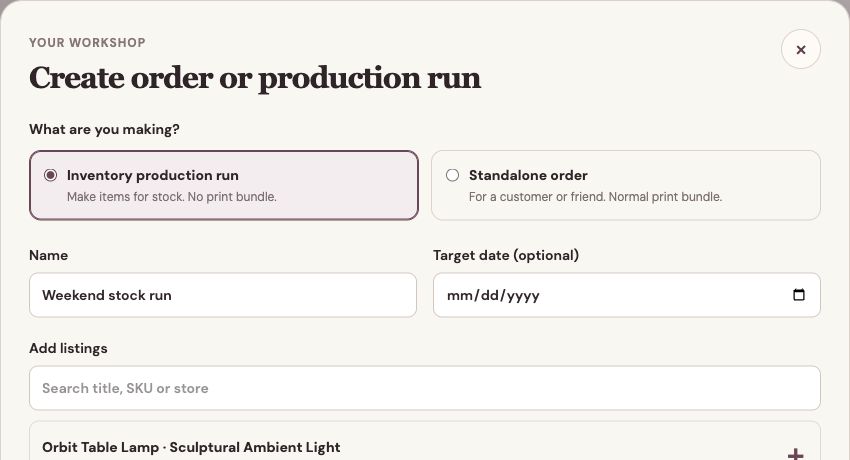
Choose the type of work first; the rest of the form follows that choice. - Enter a name and, if useful, a due date or target date. For a standalone order, enter the Recipient and review the Order total. A zero total is allowed; products must use the same currency.
- Search the available listings by title, SKU, or store. Add each product, select its variation, and enter a whole-number quantity. You can include up to 50 product rows.
- Add any instructions in Notes, review the selected products, then choose Create standalone order or Create production run.
Work on a standalone order
A standalone order follows your normal production stages. Review its materials and costs, make and pack the products, then open the normal print bundle when it is ready.
Complete the order in Meldsy when the work is finished. This does not create or fulfill an order in a connected store, collect a payment, or automatically reduce storefront stock. Record any separate storefront stock adjustment deliberately.
Work on an inventory production run
Move the run through your production stages as the products are made. Meldsy includes its production materials in demand planning and records material usage when the run is completed.
A run is internal work rather than a customer sale. It uses Finishing and Ready to finish at the end of the workflow, skips the shipping print bundle, and does not consume shipping mailers. It is excluded from sales, profit-report sales totals, and customer-order email summaries.
Complete a run and review produced stock
- Move the run to its final workflow stage and open its completion action.
- To finish without changing storefront quantities, leave Add produced quantities to listing stock off and complete the run.
- To add the finished products to stock, turn on Add produced quantities to listing stock, choose Review stock update, and wait for current marketplace quantities to load.
- Choose the exact stock variation for every produced item. Review the current quantity and proposed quantity after the increase. Products in one linked stock pool are counted once.
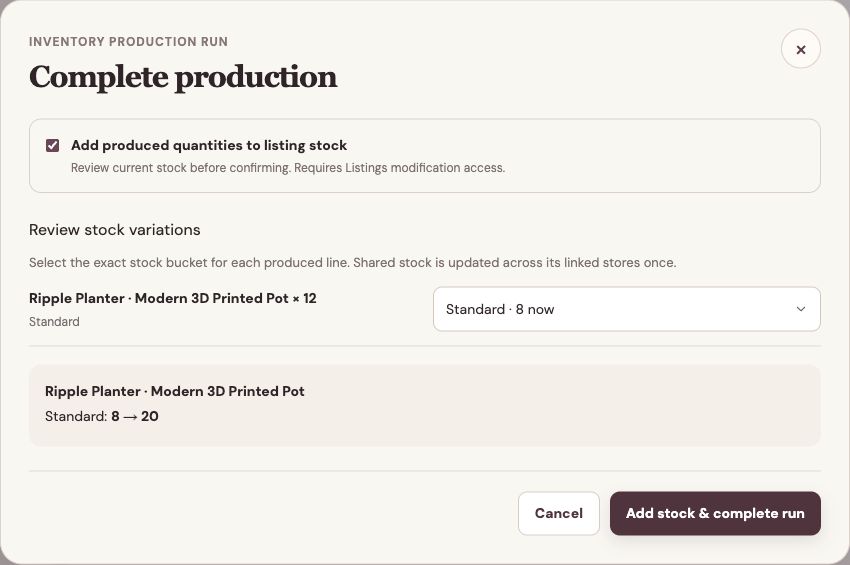
Check the stock variation and before-and-after quantities before adding finished products. - Confirm Add stock & complete run when the mappings and quantities are correct. Review the reported result; a submitted update may still be waiting for marketplace confirmation.
Resolve an uncertain stock result
If an update is partial or cannot be confirmed, check the actual quantities in Listings and the affected stores before making another adjustment. Correct only the remaining difference, then acknowledge the result in the run. Repeating the full increase could count finished products twice.
Creating either type of work requires Orders Modify and Listings Read access. Adding produced stock or acknowledging an uncertain stock result also requires Listings Modify. Completing without a stock increase requires Orders Modify.