Choose the account level that fits
Open your account menu → Account level as the account owner. Review the Current plan badge, features, and Connection Unit usage before choosing a different plan.
Starter is free and covers one Connection Unit and up to 100 active parent listings. Studio adds three shared Connection Units, expanded material and cost tools, and flexible store capacity. Scale adds a shared team of five including the owner, with no listing or connection cap.
Manage a Shopify-billed plan
If you started with the Meldsy app in Shopify, you approve and manage your plan in Shopify.
- Open your account menu → Account level and check the billing store.
- Choose Manage plan in Shopify. Review and approve the plan or billing change in Shopify.
- Return to Meldsy and check the plan displayed. If it is still being verified, choose Refresh billing status.
Choose a billing period and start a Square subscription
Only the owner can start or manage the workspace subscription. Square handles the card fields and sends its payment confirmations; Meldsy does not store your card number or security code.
- On the Studio or Scale card, choose Switch to this plan.
- Choose Monthly or Annual in Billing period. Compare the full recurring charge: an annual plan’s per-month equivalent is a comparison amount, while the full year is billed together.
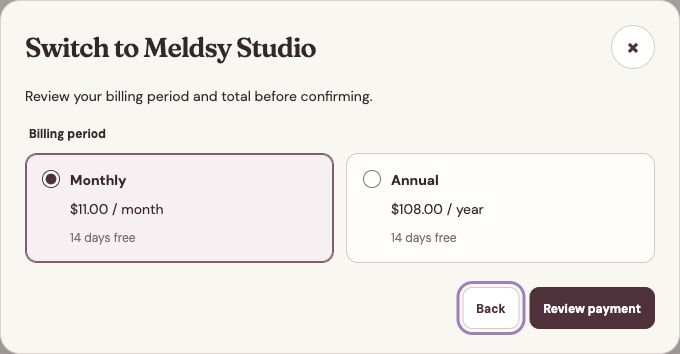
Compare the full recurring amounts before opening payment details. - Review the currency, recurring total, and any trial offered, then choose Review payment.
- Enter the requested billing details in the secure Square card fields inside Meldsy. Review the consent to save the card and collect the displayed recurring charge.
- Select the payment acknowledgement and choose Start subscription when the plan, amount, and billing period are correct.
- Check the current plan, trial end date or paid-through date, and subscription status in Account level. Use Refresh billing status if confirmation is still pending.
Understand the free trial and renewal
Eligible accounts receive a 14-day trial when starting a paid subscription. The trial is available once per account, shared across paid plans and billing periods. Review the trial shown for your account before confirming.
After the trial, the subscription renews at the displayed monthly or annual price until canceled. Annual billing collects the full year together. Changing paid plans during a trial does not restart the trial.
If your trial is extended, review the new end date in Account level. Plan and payment-method changes are unavailable during the extension. You can still cancel before the displayed first-charge date.
A confirmed payment determines paid access. If a renewal fails, access can return to Starter after the last confirmed paid period ends. Existing business data remains; review Connection Units and team availability when the account level changes.
Return to an unfinished checkout
Reopen Account level and check the saved billing status before starting again. If a checkout is unfinished, use its displayed continuation action or Discard checkout to abandon that attempt.
If payment confirmation is uncertain, use Refresh billing status and check your Square confirmation. Keep working from the saved attempt until the result is clear; do not start a second subscription to resolve a pending response.
Change plan or billing period
A Studio-to-Scale upgrade starts after its prorated payment is confirmed. The quote uses the remaining days and the price difference at your current billing frequency. During an eligible trial, the original trial end date is retained and there is no immediate upgrade charge.
A downgrade or billing-frequency change starts at the confirmed renewal date. If you upgrade and change frequency together, the upgrade can start immediately while the new frequency begins at renewal.
A scheduled change appears in the subscription summary. Use Keep current renewal plan if you want to remove that pending change before it takes effect.
- Choose Switch to this plan on the desired paid plan, or use Change billing period for the current subscription.
- Select Monthly or Annual and review the proposed change. Check Due today, the renewal date, and the amount that will renew.
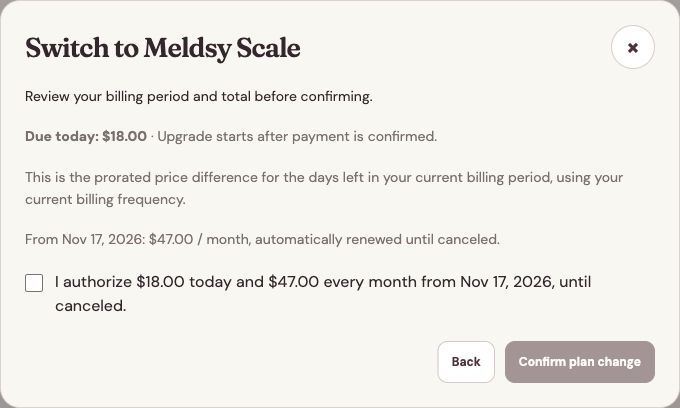
This example separates the prorated charge from the amount due at renewal. - Review the payment acknowledgement, then choose Confirm plan change. Check the updated current access and scheduled renewal details.
Update the payment method
Updating the card does not change the selected plan or billing period.
- In the subscription summary, choose Update payment method.
- Enter the replacement card in the secure Square fields and review the consent for recurring payments.
- Select the acknowledgement and choose Save payment method. Check the result before closing the dialog.
Cancel a subscription or move to Starter
Before moving to a smaller plan, review Connection Units, included active listings, and team access. Existing records remain. Team access requires Scale, and stores beyond the new allowance may need a smaller listing selection or a different allocation.
If you change your mind before cancellation takes effect, use Keep subscription when it is offered and verify the result. Canceling also removes any scheduled renewal-plan change.
- Open Account level as the owner and choose Cancel subscription on the current paid plan, or Switch to this plan on Starter.
- Review the trial-end or paid-period-end date shown in the confirmation, then choose Confirm cancellation.
- Use Refresh billing status and check the scheduled end date. Access continues until that date, then the account moves to Starter.
If checkout or billing status needs attention
- If the secure card fields do not load, check the displayed error and browser restrictions, then reopen the payment dialog. Do not send card details to support.
- If the status cannot be loaded, use Retry billing status or Refresh billing status and read the displayed error.
- If a payment and account status disagree, keep the confirmation and contact support with the account email, selected plan, billing period, and time of checkout. Do not send card numbers or security codes.