Use the right Etsy account
Sign in to the Etsy account that owns the shop you want to manage. If you use several accounts, check the shop name before approving access. You do not enter your Etsy password in Meldsy.
Authorize the connection
- In Meldsy, open Settings → Connections.
- Select Etsy, review the access summary, and choose Connect Etsy.
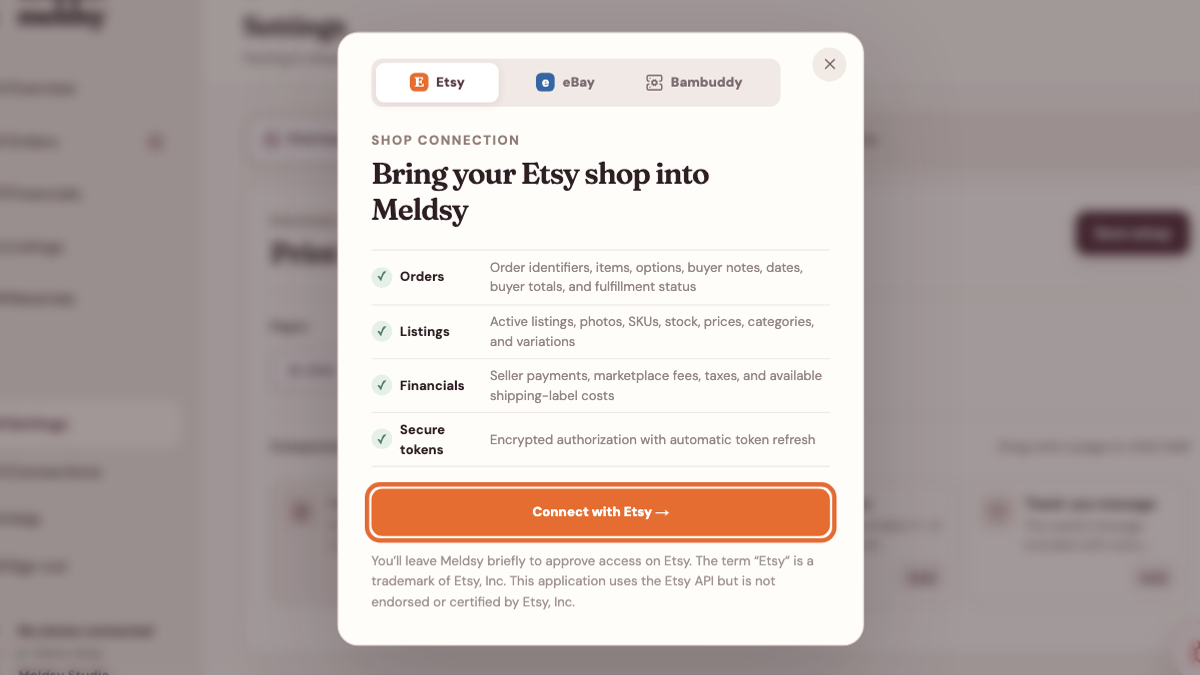
Choose Etsy to start the authorization on Etsy. - Complete sign-in on Etsy and approve Meldsy’s requested access for your shop.
- Return to Meldsy and wait for the listing and order import to finish.
Review the imported listings
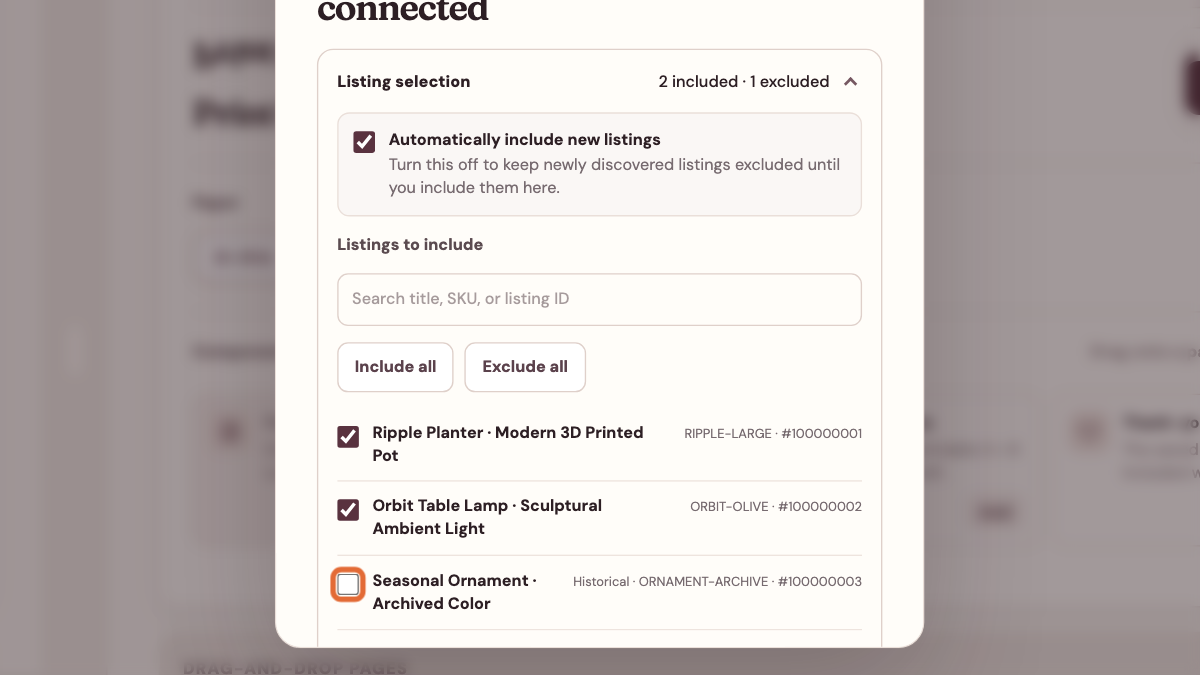
New connections include discovered listings and future listings automatically. Open Listing selection in the connected shop settings to exclude anything you do not want Meldsy to use, then save. Reconnecting an existing shop preserves its saved selections.
Check an order and set up your workflow
- Confirm the shop, listing variations, personalization, and supplied ship-by date on an imported order.
- Add materials, costs, and packing instructions in Meldsy; the connection does not configure these for you.
- For shipping-label PDFs, set up Label Bridge separately. If access expires or inventory sync needs additional permission, use Reconnect on the existing shop.