Before you start
- Use a Shopify account with app-development permissions in the organization that owns your store. The app and store must belong to the same Shopify organization.
- Find the store’s permanent myshopify.com domain. Do not use its custom website domain or an admin.shopify.com URL.
- The current connection supports one Shopify store and one inventory location per Meldsy account. You can import the catalog before selecting a location, but quantity writes stay disabled.
- This guide is for the merchant-owned custom-app connection. You do not need Shopify CLI, an OAuth callback URL, or a manually copied Admin API access token.
Create your custom app in Shopify
- Open Shopify Dev Dashboard and select the organization that owns the store. You can also start in Shopify admin → Settings → Apps → Develop apps → Build apps in Dev Dashboard.
- Choose Create app → Start from Dev Dashboard. Give the app a recognizable name, such as Meldsy connection, and create it.
- Open Versions and create a version. Set App URL to https://shopify.dev/apps/default-app-home and turn off embedding in Shopify Admin.
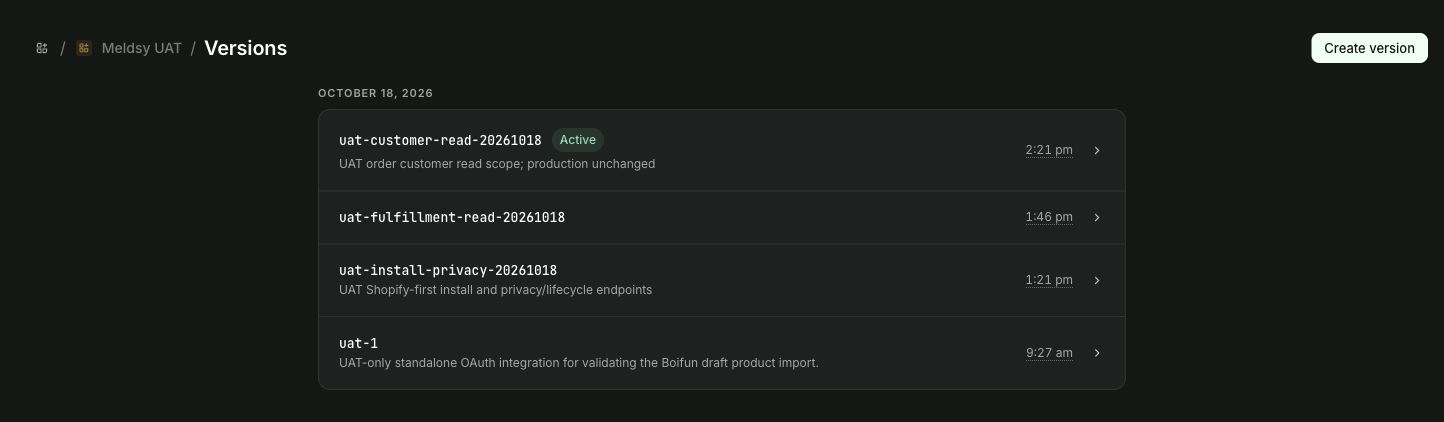
Meldsy app versions in Shopify Dev Dashboard. - Set Webhooks API version to 2026-10. Keep this version even if Shopify offers a newer default; it matches Meldsy’s implemented connector.
Select these API access scopes
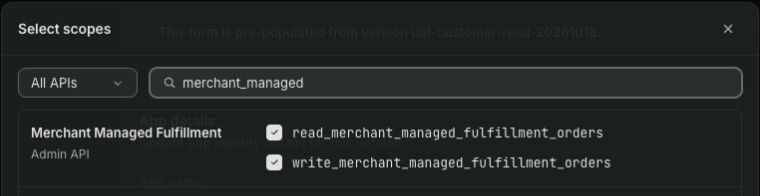
In the app version’s Scopes setting, choose Select from list, search for each of the nine permissions below, and select them, then choose Done. You can also paste the comma-separated list into the Scopes field.
The read permissions import products, customers, orders, inventory, locations, and fulfillment information. write_inventory allows the stock edits and optional linked inventory sync you choose in Meldsy. write_merchant_managed_fulfillment_orders enables the separately confirmed Complete in Shopify action.
- Order history normally covers the last 60 days. Extended order-history access is separate and is not part of this required list.
read_products,
read_orders,
read_customers,
read_inventory,
write_inventory,
read_locations,
read_fulfillments,
read_merchant_managed_fulfillment_orders,
write_merchant_managed_fulfillment_ordersRelease and install the app version
- Release the version containing the app URL, API version, and all nine scopes.
- Open the app’s Overview and choose Install app in the Installs card. Select the store in the same organization and review Shopify’s installation permissions.
- Install the app on that store. If you change scopes later, release the new version and approve the updated access on the store; saving a draft version alone does not update its permissions.
- Open App settings in the Dev Dashboard. Locate the Client ID and Client secret for this app.
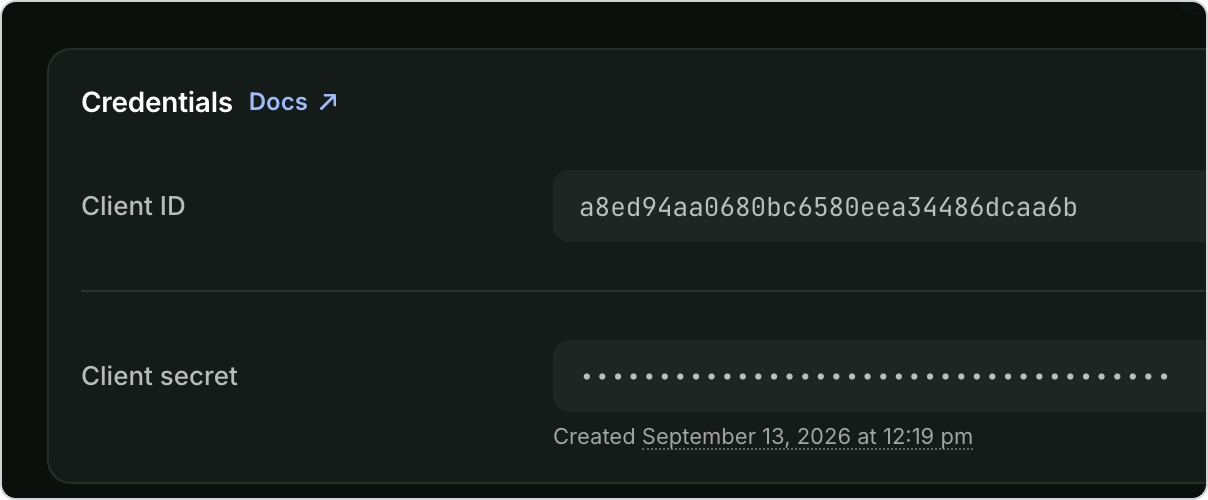
Shopify’s official credentials example. Use your own app’s values; keep the Client secret private.
Enter the connection in Meldsy
- In Meldsy, open Settings → Connections → Shopify.
- Enter your Shopify store domain, for example your-store.myshopify.com, followed by the app’s Client ID and Client secret.
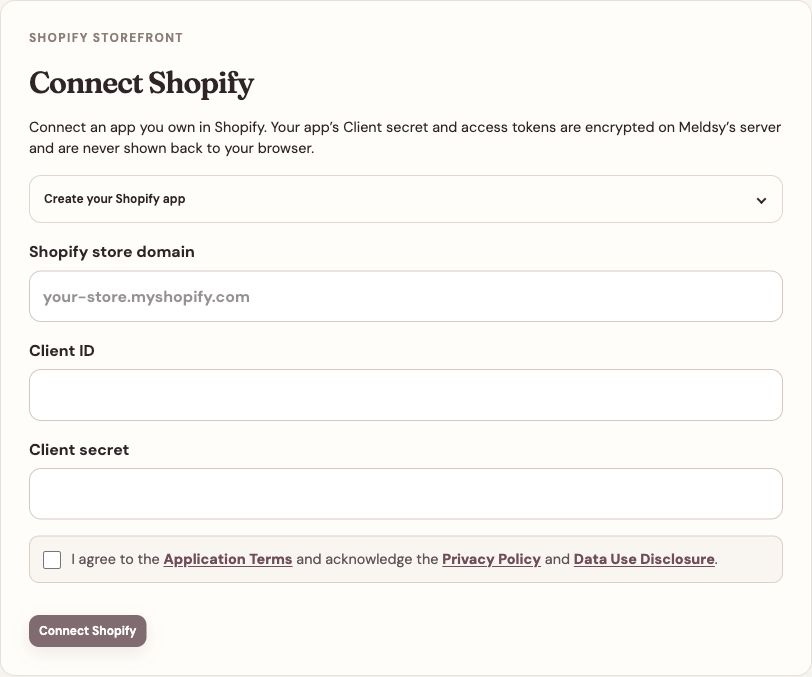
The real Meldsy connection form with sample data and empty credential fields. - Review the terms and data-use acknowledgement if prompted, then choose Connect Shopify.
- Wait for the first product and order import and automatic webhook setup. Open Listing selection and review the included products and variants.
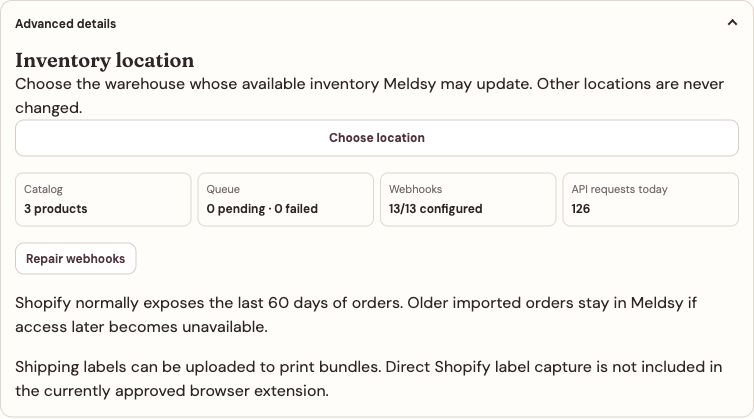
Change the inventory location and check API activity and webhook status in the Advanced details pane.
Choose the inventory location
Meldsy uses one selected location; it does not add warehouses together or write to other locations. Eligible products must be Active, track stock at that location, and stop selling when out of stock. Draft, untracked, continue-selling, or otherwise unsupported stock stays unavailable for quantity writes.
- In the connected Shopify settings, expand Advanced details.
- Under Inventory location, choose Choose location, then select the warehouse whose available stock Meldsy should use.
- Choose Save location. Check the product’s variants and current quantities before editing stock or enabling any cross-store group.
What works by default—and what needs setup
- Products and orders: photos, prices, SKUs, variants, visible personalization attributes, notes, totals, refunds, and fulfillment status import into Meldsy.
- Webhooks: Meldsy registers operational notifications automatically. Check Advanced details for 13/13 configured; you do not paste a callback URL into Shopify admin.
- Ship-by dates: Meldsy uses Shopify’s supplied fulfillment deadline. If none is supplied, it shows Not provided rather than inventing a deadline.
- Shipping labels: use Meldsy Label Bridge to return a Shopify label PDF to the matching print bundle, then review and confirm it. Manual PDF upload is also available.
- Financials: sales, refunds, and transaction fees supplied by Shopify can be shown. Missing fees, postage, and payouts are not treated as zero or complete profit.
- Production: local stage changes do not automatically fulfill an order in Shopify. Complete in Shopify is a separate, confirmed final-step action for eligible orders.
If the connection does not work
Shopify says shop_not_permitted
Check that the app and store appear under the same organization in Dev Dashboard, and that you installed the app on the exact store whose myshopify.com domain you entered. An agency-owned app in another organization cannot use this connection method.
Meldsy lists missing permissions
Add the exact scopes Meldsy names, release the updated app version, approve the change on the store, then retry or use Reconnect Shopify. Do not delete the existing connection to fix a permission error.
Products import but orders or webhooks fail
Recheck read_customers, read_fulfillments, and both merchant-managed fulfillment-order scopes. Review Advanced details for failed work. After fixing access and reconnecting, use Repair webhooks and Retry failed work if they are needed.
I need to replace credentials or change the app
Reconnect Shopify lets you replace credentials without disconnecting first. The same app preserves its saved setup. Replacing it with a different app pauses linked quantity sync for review; connecting a different store requires an explicit disconnect.