Check your account usage
Starter includes one Connection Unit. Studio includes three shared Connection Units. Each unit assigned to a store supports 100 active parent listings. Scale has no listing or connection cap and supports five users including the owner. Review the current plan screen for your account’s allowance.
- Open your account menu and choose Account level.
- Review the current plan, Connection Units in use, reserved units, and the allocation for each connected store or integration.
- Choose Manage connections & capacity to open the store settings when you need to change an allocation or listing selection.
Understand what uses a unit
- A connected store, Pinterest account, or Bambuddy instance uses one Connection Unit. Printers, AMS trays, spools, and Pinterest boards do not use additional units.
- Assigning a second unit to a Studio store gives it capacity for 200 active listings; three units give it 300. Product variations do not each count as a separate parent listing.
- A Shopify store uses one base unit across all its connected locations. Each assigned unit adds room for 100 unique included active parent products; the same product at several locations counts once. Different shops do not share an allowance.
- An unfinished connection can reserve a unit until setup finishes or the reservation expires. Standalone orders and inventory production runs do not use storefront units.
Assign capacity and choose included listings
Reset listing changes restores the listing choices only. Reset Connection Units restores the allocation draft only. Reducing listing counts does not automatically release assigned units.
- Open Settings → Connections and choose Settings for the exact store.
- In the capacity controls, use the plus or minus buttons to draft the number of Connection Units. Review Available capacity. For Shopify, use Store capacity above the location tabs and choose Save Connection Units.
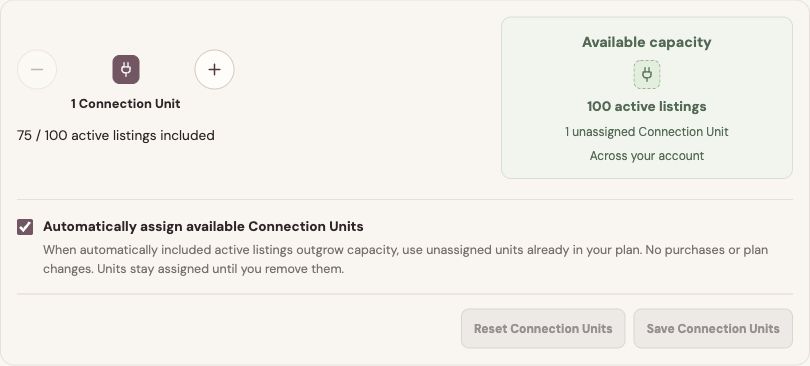
Assign available Connection Units before saving your capacity changes. - Expand Listing selection and use Included to choose which listings Meldsy uses. Review the active count and any draft, private, inactive, or excluded status groups.
- Save the listing selection with its section’s Save action. Shopify location tabs save listing choices separately from the store-wide allocation. Other stores may offer Save listing selection & Connection Units when both changed. Included active listings must fit the allocation.
Make room for a new connection
The new-store form shows how many Connection Units are currently available. If all units are in use or reserved, Continue is unavailable. Reduce an existing allocation where its included listings still fit, finish or resolve an outstanding connection, or choose a larger plan before adding another store.
Reconnect the exact existing store from its Settings when renewing authorization. Reconnecting that store does not require a new Connection Unit.
Choose the active store on Starter
If Account level asks for an Active Starter store, choose one store from the list. Starter syncs that store with up to 100 included active parent listings. Other stores, listings, and history are retained.
Choosing Shopify selects the whole store, including its connected locations, with one shared 100-product allowance. If the store is over capacity, open Connections and reduce its included active listings.
Let a growing store use available units
Automatically assign available Connection Units is on by default. When an automatically included catalog grows naturally, Meldsy can assign spare units already included in the account before applying an over-capacity deadline. This does not buy units or change the plan price.
The owner and Connections Admins receive an assignment notice identifying the store and added capacity. Turn the setting off in the store’s capacity controls if you want to allocate spare units yourself.
Resolve an over-capacity store
Eligible natural catalog growth receives a buffer, normally five days; use the exact deadline shown for the store. If the store remains over capacity after that deadline, its normal listing, stock, and new-order sync pause. Existing orders, production work, and history remain available, and unrelated stores can continue.
Initial oversized imports, manual re-inclusion, and reconnecting do not restart the growth deadline. A lower listing count or extra capacity does not silently restart previously paused linked-stock groups.
- Open the affected store’s Settings and read its active count, allocation, and any displayed deadline.
- Assign available Connection Units, exclude enough active listings to fit, or choose a plan with more capacity. Save and check the resulting status.
- Use View upgrade plans if you need more account capacity. If linked-stock groups were paused, review their current quantities and mappings before enabling their sync again.