Select locations for a Shopify shop
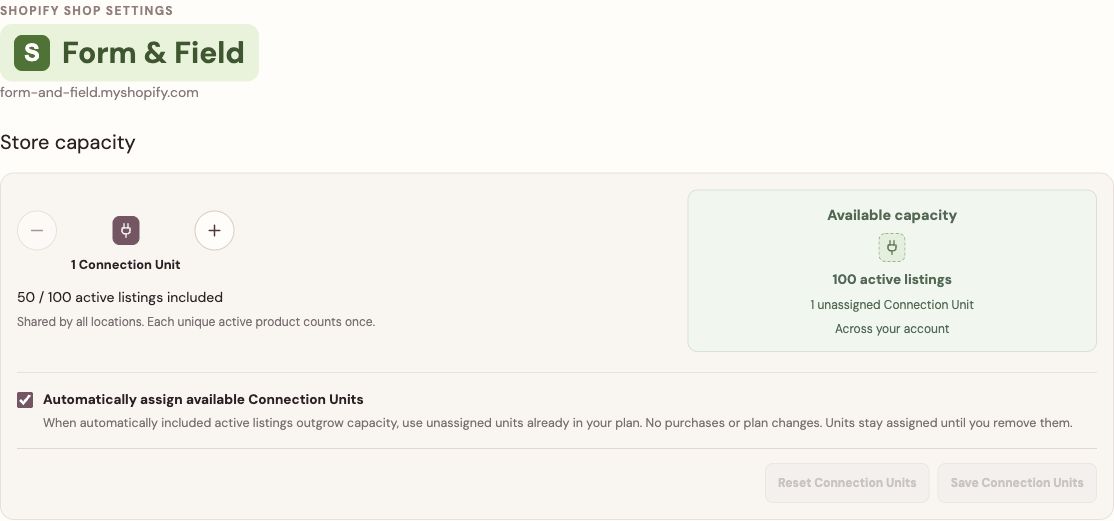
One Shopify store uses one base Connection Unit, regardless of how many inventory locations you connect. Discovering a location does not select it automatically.
- Open Settings → Connections and find the exact shop under Shopify. Open its Settings and choose Manage locations above the location tabs.
- Wait for the location list to load. Select the merchant-managed locations whose stock and orders you want to use in Meldsy. Unsupported third-party fulfillment locations show why they cannot be selected.
- Review the selected locations, then choose Save locations. Adding or removing locations does not change the shop’s assigned Connection Units.
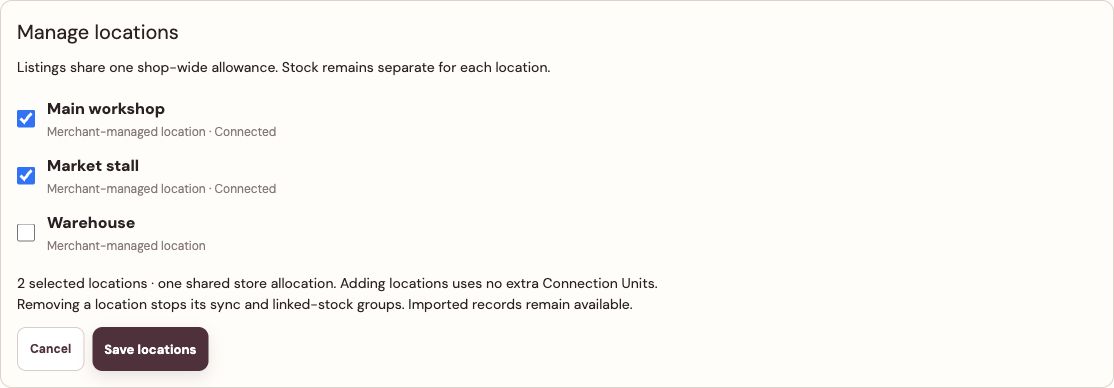
Choose the locations Meldsy should manage. Their stock stays separate within one store allocation. - Choose a location tab to review its listing selection, stock availability, and any order-routing issues. Store capacity above the tabs applies to the whole shop.
Understand the shared catalog and separate stock
Locations within one Shopify shop share the same product catalog. Their available inventory stays separate: Meldsy does not add warehouse quantities together or silently use stock from another location.
Each Connection Unit assigned to the shop supports 100 unique included active parent products across all its connected locations. A product included at two locations counts once; variations do not each count as parent products. Two assigned units support 200 products, and three support 300.
Separate Shopify stores have separate allowances. Adding a location neither consumes another base unit nor expands the shared listing allowance. Existing allocations stay assigned until you explicitly reduce them, with a minimum of one unit per connected shop.
Quantity writes require supported, stock-tracked products at the exact connected location. Missing location inventory is unknown, not zero. Check the location and variations before linking stock or making an adjustment.
Review order routing when needed
Meldsy keeps one order for a Shopify shop and uses fulfillment groups and locations to route its items. Connecting several locations does not create a separate customer order for every location.
If routing is incomplete, a required location is not connected, or Shopify reassigns work, review the reported routing hold before continuing. Check the current fulfillment location in Shopify and the connected locations in Meldsy. Existing production work is retained for review.
Remove a location or reconnect the shop
Return to Manage locations, clear the location you want to stop using, and save. Removing a location stops its sync and linked-stock groups while retaining imported records. Keep at least one location selected when saving this screen; use Disconnect shop to disconnect the whole shop.
Shop connection → Refresh, Reconnect, and Disconnect shop apply to the Shopify shop and all its connected locations. Other Shopify shops are separate. Recheck linked-stock groups after a location or authorization change before enabling writes again.