Choose emails during first-time setup
After verifying your email, first-time setup includes Choose your emails before you choose your starting point. Workshop summaries, immediate alerts, and product-update interest are three independent choices. All are optional and off by default; you can finish signup with none selected.
- If you want a workshop summary, turn on Email me a workshop summary, choose its frequency, and keep at least one summary section selected.
- If you want immediate alerts, turn on Email me immediate alerts and keep at least one alert type selected.
- Optionally select Email me Meldsy product updates and announcements.
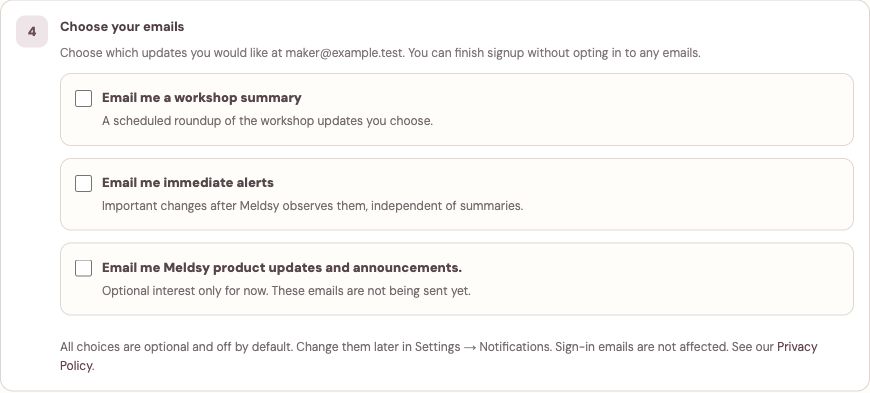
All three choices start unchecked. You do not need to opt in to finish setup. - Finish the remaining setup and choose Connect first store or Start with sample data. Your choices are saved when setup completes. Change each choice later in Settings → Notifications.
Open your notification settings
- Open Settings in Meldsy and choose Notifications.
- Check the account email shown under each opt-in. These settings do not have a separate recipient field.
- Choose workshop summaries, immediate alerts, product-update interest, or any combination. Each panel has its own choice and Save button.
Set up a workshop summary
- In Your workshop, by email, turn on Email me a workshop summary.
- Choose Daily, Twice weekly, or Weekly in Frequency.
- Under Include in my summary, select the updates you want. Keep at least one section selected while summaries are enabled.
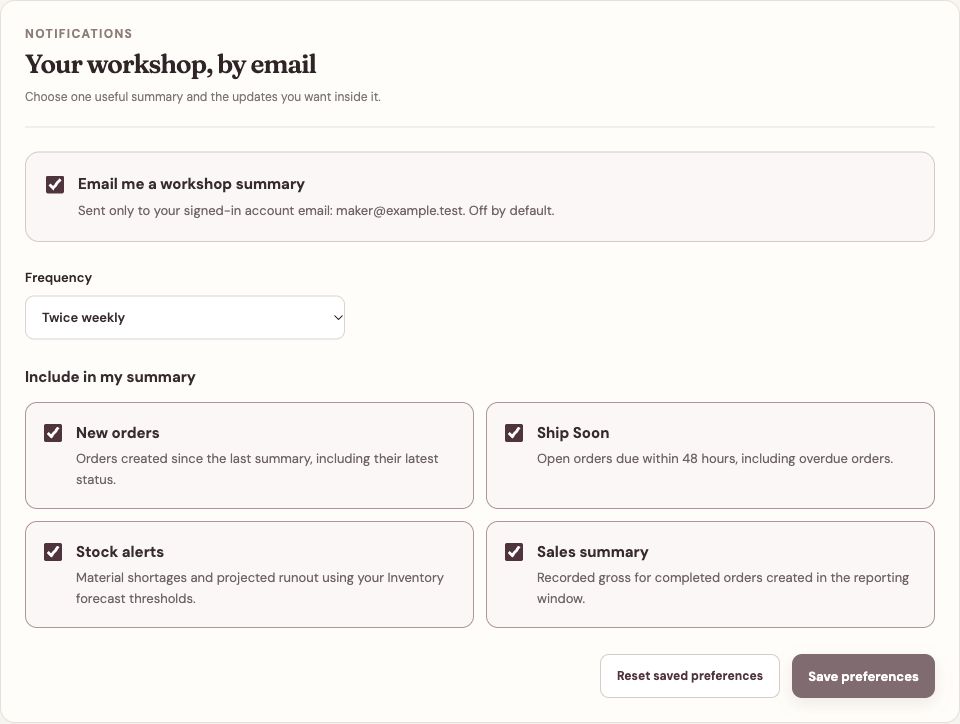
The actual settings panel with a fictional account. This example selects Twice weekly and all four sections. - Choose Save preferences. Reset saved preferences discards unsaved edits and restores your last saved choices; it does not reset the account to factory defaults.
When summaries are scheduled
Frequency is the delivery control. Summaries are scheduled for 8:00 AM Pacific time, following daylight saving time. There is no separate time or time-zone picker.
- Daily: every day.
- Twice weekly: Monday and Thursday—not every other week.
- Weekly: Monday.
Choose what goes in the summary
Emails use saved Meldsy data after store sync and respect listing selection. Open the matching Orders, Materials, or Financials view from the email to review the current records.
- New orders: orders created since the last summary, with their latest status.
- Ship Soon: open orders due within the next 48 hours, including overdue orders. An order needs a real ship-by deadline; Meldsy does not invent one from its order date.
- Stock alerts: material shortages and projected runout using your Inventory forecast thresholds, including saved snooze and dismissal choices.
- Sales summary: recorded gross for completed, non-canceled orders created in the reporting window. Different currencies stay separate; this is not a payout or net-profit total.
Choose immediate alerts
When delivery is enabled, checks run about every minute after changes reach Meldsy. Store sync, processing, and email delivery can add a delay; immediate does not mean an instant marketplace notification.
The first check establishes a starting point without emailing a backlog of existing warnings. New related changes are grouped. An ongoing issue does not keep sending reminders: the same item can alert again only after recovery and at least one hour since its previous alert.
- In Catch important changes, turn on Email me immediate alerts.
- Under Alert me about, select at least one alert type.
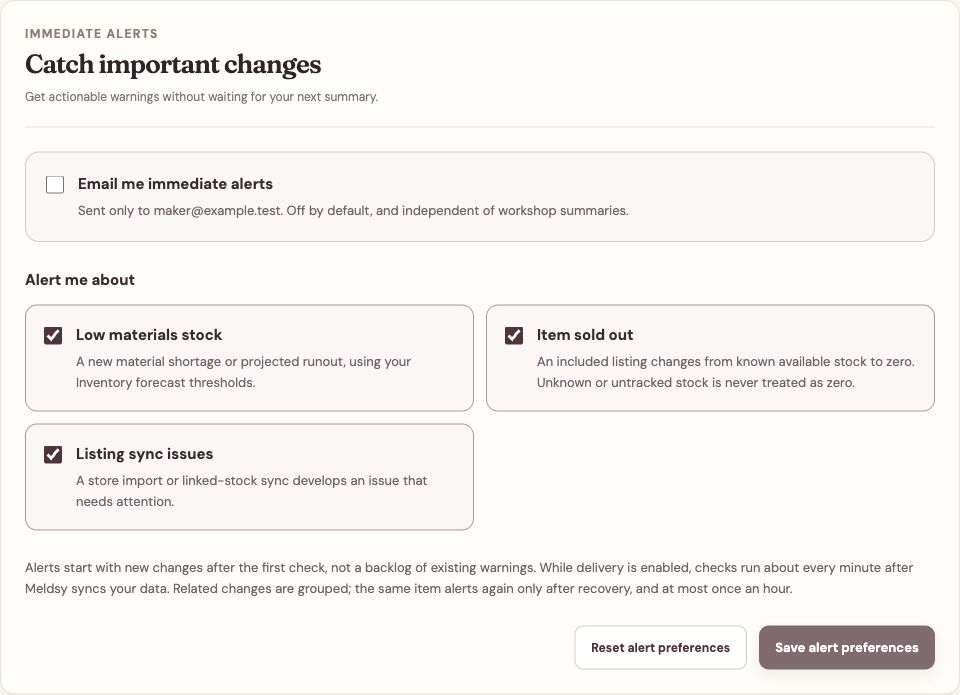
Immediate alerts have their own opt-in and Save button. The sample panel shows all three available types; the master opt-in is still off. - Choose Save alert preferences. Reset alert preferences restores the last saved alert choices without changing your workshop summary.
- Low materials stock: a new material shortage or projected runout, using your Inventory forecast thresholds.
- Item sold out: an included listing changes from known available stock to zero. This is whole-listing stock, not a single variation selling out; unknown or untracked stock is not treated as zero.
- Listing sync issues: a store import or linked-stock sync develops an issue that needs attention. Open Meldsy to see the current error and the action needed.
Record or withdraw product-update interest
Hear what’s new in Meldsy is separate from operational summaries and alerts. It currently records interest only—not a confirmed mailing-list subscription or a promise of delivery. Product-update emails are not being sent yet. Existing accounts are not opted in automatically.
- In Settings → Notifications, find Hear what’s new in Meldsy under Product updates.
- Select Email me Meldsy product updates and announcements to record interest, or clear it to withdraw interest.
- Choose Save product preferences. Reset product preferences discards unsaved changes and restores your last saved choice.
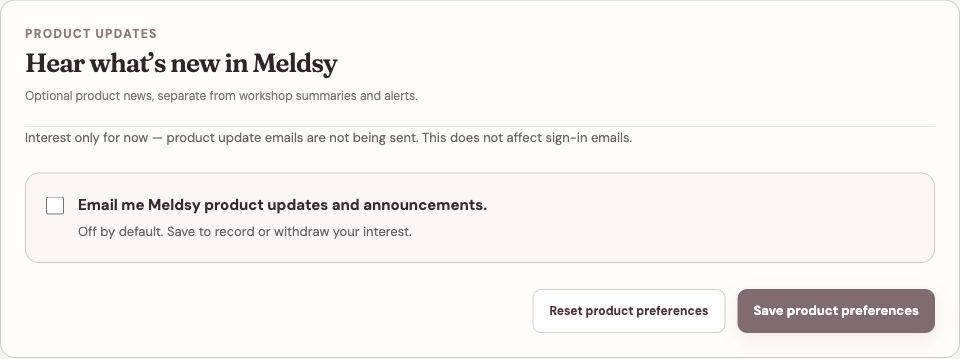
Save this panel separately to record or withdraw interest. It does not change summaries or immediate alerts.
Change or turn off emails
The three choices are independent. Turning off summaries does not stop immediate alerts, and withdrawing product-update interest does not change either operational choice. Sign-in emails and other account messages are unaffected. Return to Settings → Notifications to change any choice again.
- To stop summaries, turn off Email me a workshop summary and choose Save preferences.
- To stop immediate alerts, turn off Email me immediate alerts and choose Save alert preferences.
- To withdraw product-update interest, clear Email me Meldsy product updates and announcements and choose Save product preferences.
- To receive fewer updates, keep the relevant opt-in on, adjust its sections or alert types, and save that panel.
- In a summary email, Turn off summaries opens a confirmation page. In an alert email, Turn off immediate alerts opens its own confirmation page. Confirm there to complete the opt-out.
If an email is missing
I saved my choices, but nothing arrived
Check the correct master opt-in and Save button, then check spam or junk and the account address shown in Settings. For summaries, wait for the next scheduled slot; saving is not a test send and an empty report can be skipped.
An existing shortage did not trigger an immediate alert
Alerts start with new changes after the first check, not a backlog. Existing warnings remain available in Overview and Materials. A continuing issue will not send repeat reminders, and a recurrence within the one-hour cooldown is suppressed.
The email does not match the latest storefront change
Emails are based on saved Meldsy records. Check the store connection, last refresh, listing selection, and any sync error first. For a stock warning, review the material forecast and its snooze or dismissal state. Refreshing the website help page does not refresh your store.
Save is unavailable or reports a conflict
Select at least one section or alert type when its master opt-in is enabled. Save and Reset stay unavailable if nothing has changed. If another tab changed the preferences or the page reports an error, reload the notification settings, review the latest choices, and try again.
An email opt-out link is no longer valid
Use Settings → Notifications instead. A newer preference save can invalidate an older email link. Make sure you are signed in to the account that received the message.