Prepare the store and browser
- Set up your label service in WordPress, including its shipping account, origin, packages, and payment method. Meldsy does not buy or refund postage.
- The supported direct capture is for the official WooCommerce Shipping print flow and matching order-named PDFs. Other shipping plugins are not automatically compatible.
- Install or update Meldsy Label Bridge. If WooCommerce store access is missing from its toolbar popup, update the extension and refresh Meldsy before trying again.
- Use the same browser for Meldsy, the extension, and WordPress, and sign in to your store.
Allow your custom store domain
Approval applies to the exact HTTPS origin, not all websites. If you change from www to a different hostname or move the store, approve the new domain. Use the trash action beside a domain to revoke its access.
- Open Meldsy Label Bridge from the browser toolbar. Pin its icon if you cannot find it.
- Expand WooCommerce store access.
- Enter your store’s HTTPS URL in Store URL, for example https://shop.example.com, and choose Allow this store.
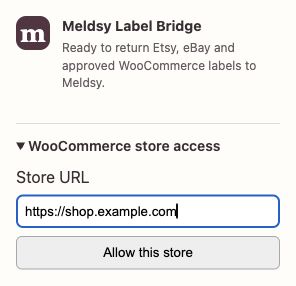
Add your own HTTPS store domain here. Do not enter API keys or allow every website. - Approve the browser’s permission request for that exact store. Check that its domain appears in the allowed list.
Start from the matching Meldsy order
- Open the WooCommerce order’s print bundle in Meldsy.
- Choose Open label in WooCommerce. Keep the originating Meldsy bundle open.
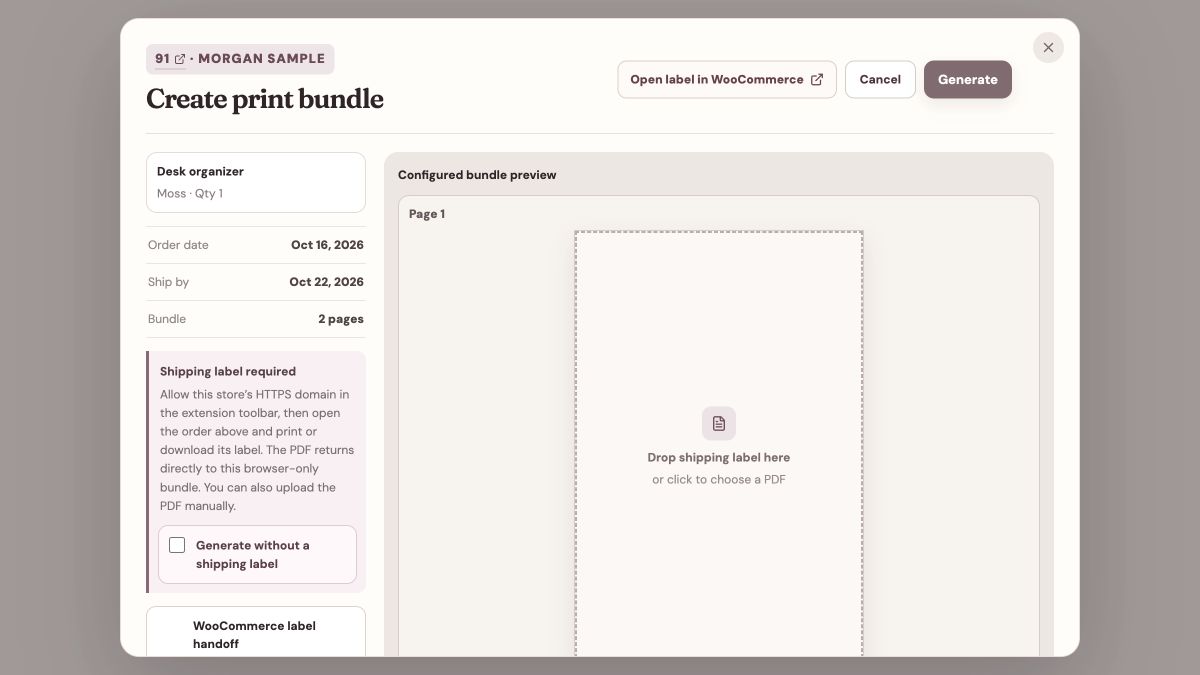
Begin here so Label Bridge knows which store and order the PDF belongs to. - On that order in WordPress, open an existing label or purchase one when you intend to pay for postage, then print or download its PDF normally.
- Wait for the PDF to return to Meldsy. Check the order number, label, and any extra pages before generating the bundle.
Limits and fallback
- Label PDFs stay in the browser, not on Meldsy’s server. Capturing a PDF does not import its postage expense or write tracking back to WordPress.
- Only the handoff’s recorded store/order tab is eligible. Finish or cancel an earlier handoff before opening another.
- For a normal PDF download, keep the matching order number in the filename. Arbitrary invoices and unrelated downloads are not labels.
- If the label does not return, download the correct PDF and drag it onto the shipping-label page or use the PDF picker. Keep all additional pages that your shipment needs.